
 by
by If your Wi-Fi keeps disconnecting during work calls, online classes, gaming, or streaming, the router is not always the problem. A dropping connection can come from one device, weak signal, outdated software, a VPN conflict, loose cables, old firmware, or your internet provider.
The best fix is to find the pattern first: is one device disconnecting, or is the whole network dropping?
- Quick Answer: Why Your WiFi Keeps Disconnecting
- First Check: One Device or the Whole Network?
- Wi-Fi Dropping vs Internet Dropping
- 10 Fixes to Try First
- 1. Restart Your Modem and Router
- 2. Forget the Network and Reconnect
- 3. Move Closer to the Router
- 4. Turn Off VPN or Security Apps Temporarily
- 5. Update Software and Wi-Fi Drivers
- 6. Disable Power Saving for the Wi-Fi Adapter
- 7. Try 2.4 GHz Instead of 5 GHz
- 8. Check Cables and Router Lights
- 9. Update Router Firmware
- 10. Call Your ISP or Replace Old Hardware
- Real Examples
- Common Mistakes to Avoid
- 5-Minute Checklist
- Final Advice
- FAQ
Quick Answer: Why Your WiFi Keeps Disconnecting
Your Wi-Fi may keep disconnecting because of weak signal strength, router glitches, outdated Wi-Fi drivers, power-saving settings, interference, VPN apps, bad cables, old firmware, or ISP problems. If one phone or laptop disconnects, troubleshoot that device first. If every device drops, check the modem, router, cables, and provider.
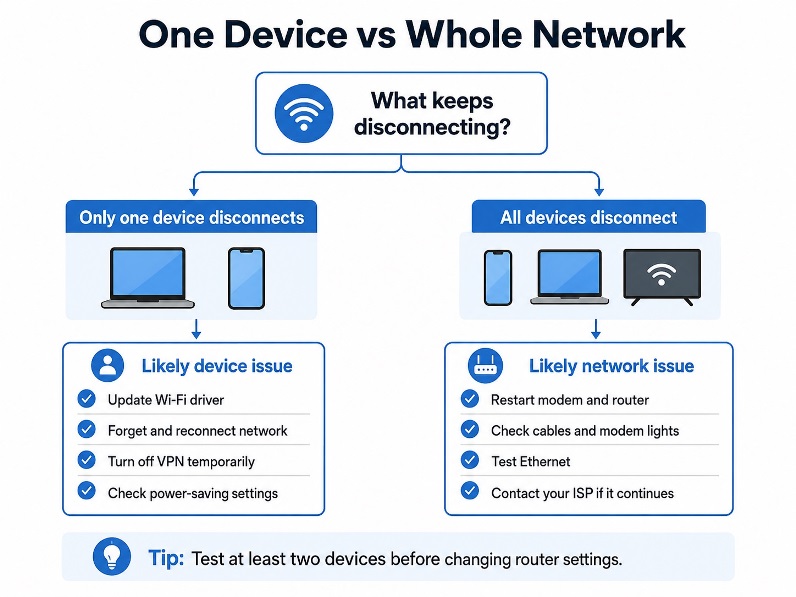
First Check: One Device or the Whole Network?
Test at least two devices on the same network. Use a phone, laptop, tablet, or smart TV.
If your laptop disconnects but your phone stays online, the issue may be the laptop’s driver, saved profile, VPN, or battery setting. When multiple devices—like your phone, laptop, and TV—disconnect simultaneously, the issue is almost certainly centralized within your router, modem, wireless coverage, cabling, or ISP.
| What happens | Likely cause | First fix |
|---|---|---|
| One device drops | Device setting, driver, VPN, or saved network issue | Forget network or update driver |
| All devices drop | Router, modem, cable, or ISP issue | Restart modem and router |
| Ethernet works but Wi-Fi drops | Wireless signal or router setting issue | Check placement and Wi-Fi band |
| Ethernet also fails | Modem, cable, or provider issue | Contact your ISP |
Wi-Fi Dropping vs Internet Dropping
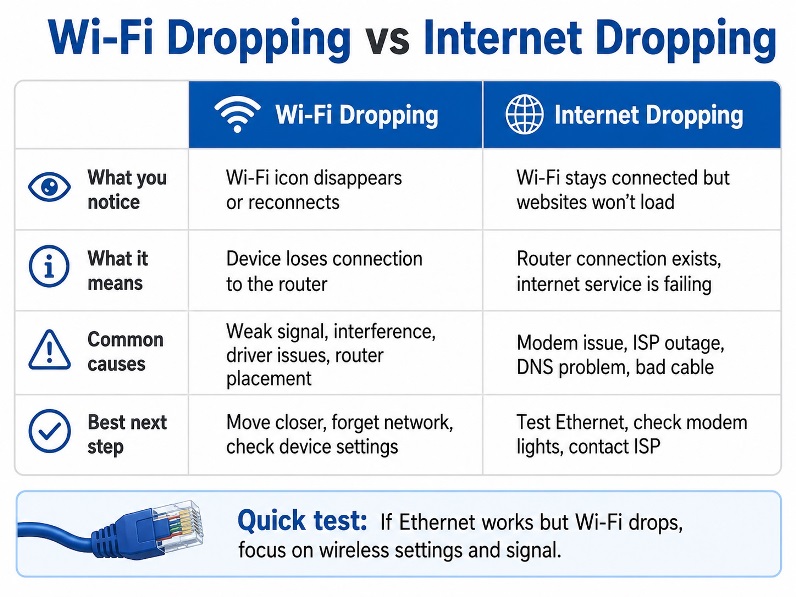
Wi-Fi and the internet are deeply interconnected, but they are fundamentally different technologies. Wi-Fi is the wireless connection between your device and router. The internet is the service coming from your provider through the modem or gateway.
If the Wi-Fi icon disappears, that is usually a wireless issue. If the Wi-Fi icon stays connected but websites do not load, the problem may be the modem, DNS, cable, router-to-modem connection, or ISP.
Try an Ethernet test. Connect a laptop directly to the router. If Ethernet works but Wi-Fi drops, focus on wireless signal, router placement, or device settings. If Ethernet also fails, the problem is probably outside Wi-Fi.
10 Fixes to Try First
1. Restart Your Modem and Router
Unplug the modem and router. Wait 30 to 60 seconds. Plug in the modem first and wait for stable lights, then plug in the router. This clears temporary glitches when several devices act strangely.
2. Forget the Network and Reconnect
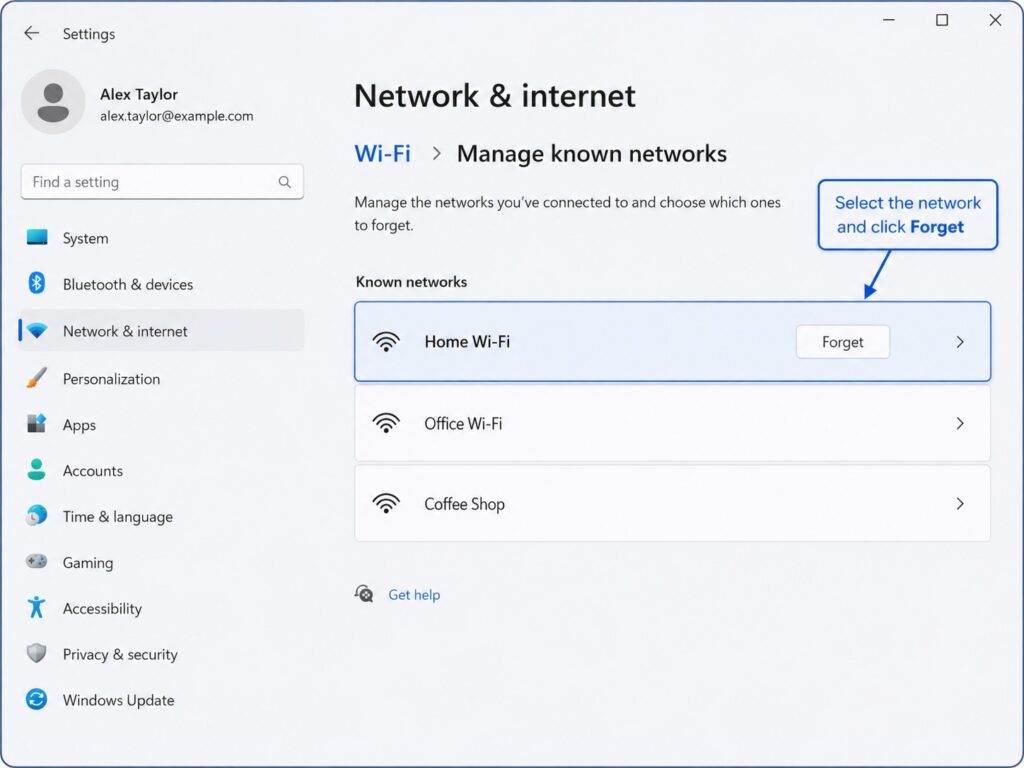
Saved Wi-Fi profiles can break after password changes, router updates, or software bugs. On your phone or computer, choose your network, select Forget, then reconnect with the password. Microsoft Support also recommends forgetting and reconnecting during Windows troubleshooting.
3. Move Closer to the Router
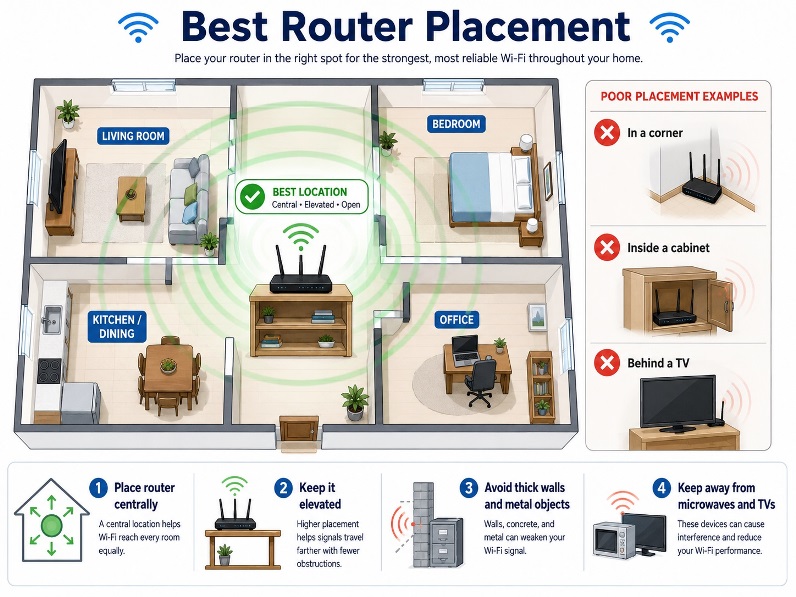
Weak signal is a common reason Wi-Fi drops. Walls, floors, metal objects, mirrors, appliances, and cabinets can reduce signal strength. Test your device in the same room as the router. If it becomes stable, the issue is coverage. The FCC recommends central router placement for better home coverage.
4. Turn Off VPN or Security Apps Temporarily
VPNs, firewalls, antivirus tools, and privacy apps can interrupt traffic. Turn them off briefly and test the connection. If Wi-Fi becomes stable, update the app, change the VPN server, or reinstall it. Do not leave protection disabled permanently.
5. Update Software and Wi-Fi Drivers
Outdated software can cause unstable wireless connections, especially on laptops. On Windows, update the Wi-Fi driver in Device Manager. On iPhone, Android, and Mac, install the latest system update and restart.
6. Disable Power Saving for the Wi-Fi Adapter
Some laptops reduce power to the wireless adapter to save battery. That can cause disconnects after sleep or when the laptop is unplugged. On Windows, check the adapter’s power management settings and stop the computer from turning it off.
7. Try 2.4 GHz Instead of 5 GHz
The 5 GHz band is usually faster, but it has shorter range. The 2.4 GHz band is slower but reaches farther, so it may be more stable in bedrooms, upstairs rooms, garages, or rooms far from the router.
8. Check Cables and Router Lights
Loose or damaged cables can cause repeated drops. Check the power cable, Ethernet cable, coaxial cable, or fiber connection. Watch the modem lights when the connection fails. Red, orange, or blinking warning lights may point to a line or ISP problem.
9. Update Router Firmware
Router firmware is the software inside your router. Updates can fix bugs, improve stability, and improve security. Open your router app or admin page. The FTC notes that keeping your router up to date with official software
is critical to maintaining network stability and device security.
10. Call Your ISP or Replace Old Hardware
Call your provider if every device disconnects, Ethernet also fails, your modem restarts by itself, or the connection drops daily. Only replace your router after basic troubleshooting. Consider upgrading if it is old, overheats, unsupported, or cannot handle your devices.
Real Examples
If your laptop disconnects but your phone works, troubleshoot the laptop first. Check drivers, VPN, saved Wi-Fi settings, and power options.
If Wi-Fi drops only in your bedroom, the issue is probably weak signal. Try moving the router, using 2.4 GHz, or adding mesh Wi-Fi.
If all devices disconnect at night, check for router overheating, ISP maintenance, scheduled restarts, or network congestion.
Common Mistakes to Avoid
Do not factory reset the router first because it can erase important settings. Do not buy a new router before checking drivers, cables, firmware, placement, and whether one device or all devices are affected.
5-Minute Checklist
Test another device. Restart the modem and router. Move closer to the router. Forget and reconnect to Wi-Fi. Turn off VPN briefly. Test Ethernet. Update software and drivers. Check cables and router lights. Update router firmware. Call your ISP if the whole network still drops.
Final Advice
When Wi-Fi keeps disconnecting, troubleshoot in order. First check whether one device or the whole network is affected. Then separate Wi-Fi problems from internet service problems with an Ethernet test. Most issues can be narrowed down with a restart, better router placement, driver update, firmware check, cable check, or network reset. If every device keeps dropping even on Ethernet, your ISP should check the line or equipment.
FAQ
Why does my Wi-Fi keep disconnecting every few minutes?
Common causes include weak signal, outdated drivers, router overheating, power-saving settings, interference, VPN conflicts, or ISP problems.
Why is Wi-Fi connected but the internet not working?
If Wi-Fi stays connected but websites do not load, the issue may be your modem, ISP, DNS, cable connection, or router-to-modem link.
Should I use 2.4 GHz or 5 GHz?
Use 2.4 GHz for better range. Use 5 GHz when you are close to the router and want faster speed.
