
 by
by 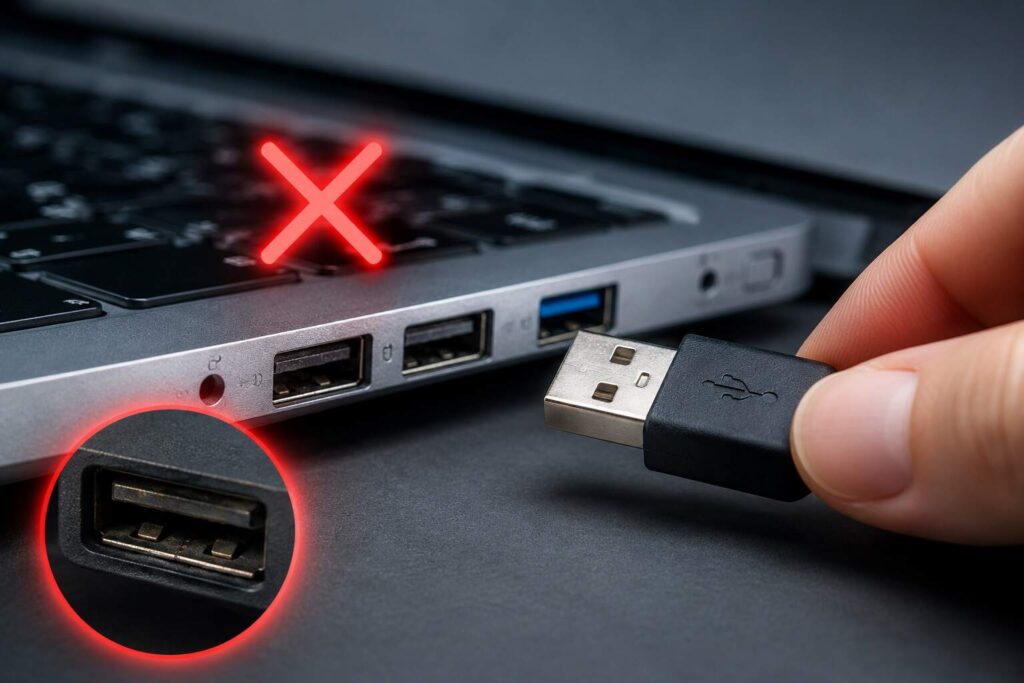
To resolve the issue of “usb ports not working”, test with another device and cable, restart fully, clean the port, disable power saving, reinstall USB controllers, update chipset drivers and check BIOS/UEFI before assuming that there is a hardware problem. On most Windows PCs, this order helps to isolate the actual cause quickly and avoids unnecessary risky changes and repairs, and failure after sleep/updates/heavy USB hub utilization.
If there is a problem with the usb ports that is not working, don’t begin using random driver utilities on the laptop or desktop. Begin with the evidence, work up to the cause.
- First Check the Failure Pattern
- 1. Test the Device, Cable, and Port
- 2. Restart and Do a Full Power Reset
- 3. Inspect the Port Safely
- 4. Reinstall USB Controllers in Device Manager
- 5. Turn Off USB Power Saving
- 6. Update Windows, Chipset Drivers, and BIOS/UEFI
- 7. Check BIOS/UEFI, Hubs, and Power Limits
- When Repair Is the Right Answer
- Final Recommendation
- FAQs
First Check the Failure Pattern
| What you see | Likely cause | First action |
|---|---|---|
| One device fails everywhere | Bad device or cable | Test another cable and PC |
| All devices fail in one port | Dirty or damaged port | Inspect the connector |
| All ports fail at once | Driver, chipset, or BIOS issue | Restart and check Device Manager |
| Failure after sleep | USB power saving | Disable selective suspend |
| Hub or dock fails | Power limit | Connect directly first |
This chart is crucial because an unresponsive USB port is just a surface-level symptom, rather than the root cause. The right fix depends on the pattern.
1. Test the Device, Cable, and Port
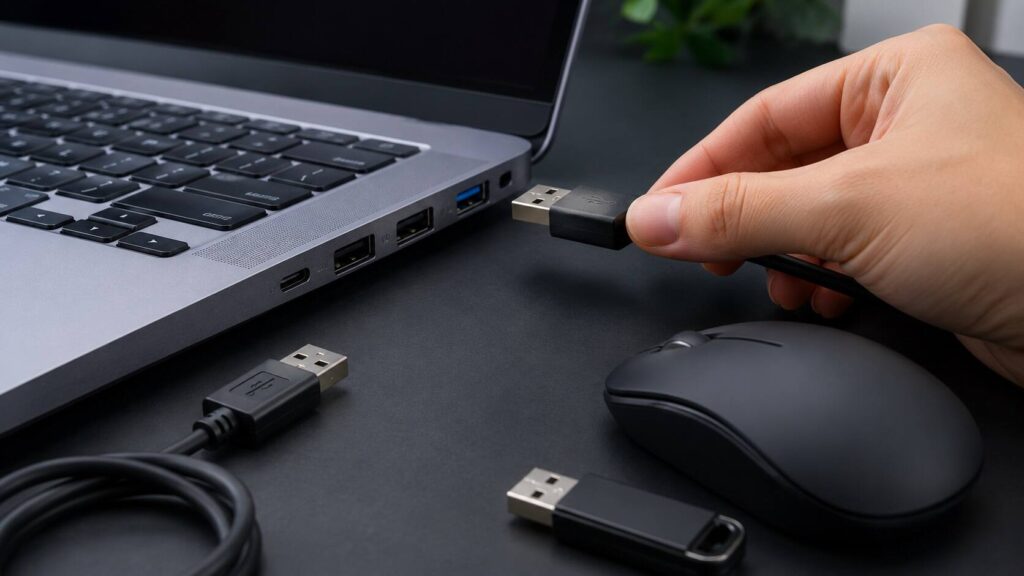
Plug a different device into the same port. Then plug the original device into another port. Test the device on another computer.
If a usb port not working issue appears with every device in that socket, focus on that port. For USB-C, use a known data cable, not only a charging cable.
Avoid hubs during testing. A weak hub can make usb ports not working look like a computer failure when the real issue is power delivery.
2. Restart and Do a Full Power Reset
Restart Windows once. If the issue remains, shut the computer down completely. Unplug the charger, remove USB devices, wait one minute, then start again.
Hold the power button for 20 to 30 seconds while powered off. This can clear a stuck USB controller state after sleep or a failed device handshake.
3. Inspect the Port Safely
Turn the computer off and look inside the port with a light. Dust, lint, bent pins, or corrosion can stop contact. Use compressed air gently; never use water or metal tools inside the connector.
A single usb port not working problem on a desktop front panel may mean the internal motherboard header is loose. Rear motherboard ports are better for testing.
If the plug feels loose or only works at an angle, stop forcing it. That is a hardware sign.
4. Reinstall USB Controllers in Device Manager
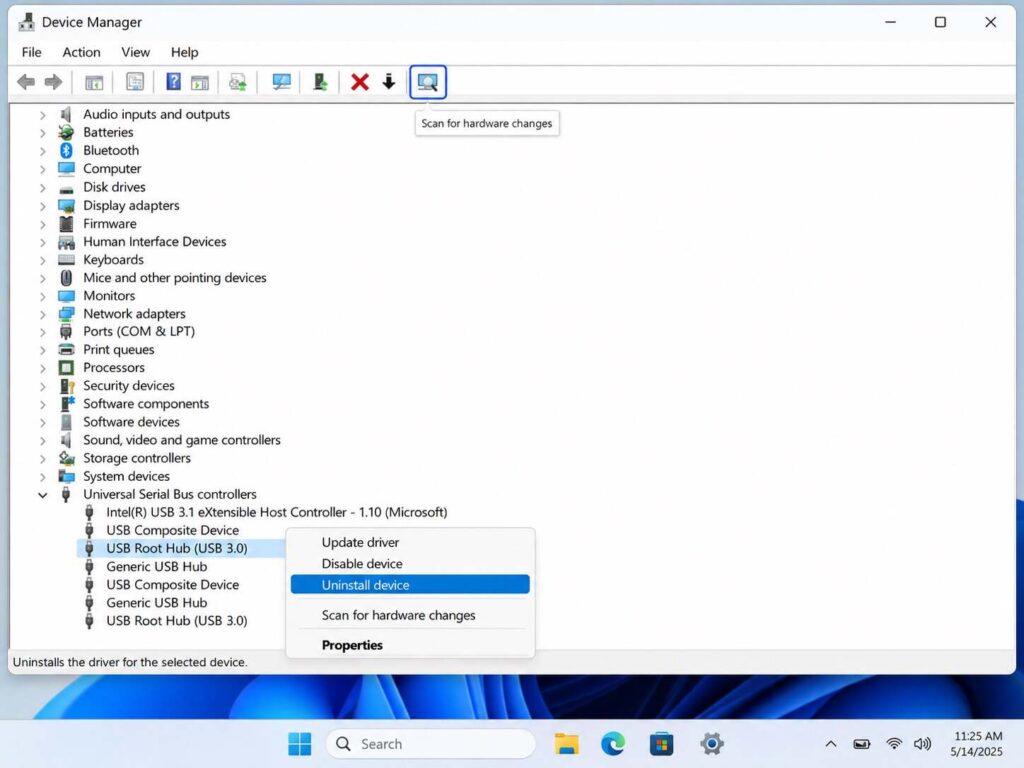
Right click on Start and select Device Manager. Expand USB controllers. Right click on USB Root Hub, Generic USB Hub or USB Host Controller and select Uninstall device, then restart.
The controller list should be updated automatically in Windows. This step is helpful if the USB ports stop working following an update, after a driver conflict, or after multiple (connect-disconnect) sound events.
If you encounter Code 10, Code 43 or descriptor failure, try a different cable and check with one of the other computers before assuming that Windows is at fault. Usb device not recognized windows 10 simply tells Windows that it is seeing the device but can’t complete the device communication.
5. Turn Off USB Power Saving
Windows may turn off USB devices to save battery. That can cause devices to wake badly after sleep.
Open Device Manager, open each USB Root Hub or Generic USB Hub, select Power Management, and uncheck “Allow the computer to turn off this device to save power.” Then disable USB selective suspend in advanced Power Options.
This is one of the strongest fixes when usb ports not working happens after the laptop lid closes, sleep mode, or long idle time.
6. Update Windows, Chipset Drivers, and BIOS/UEFI
Run Windows Update first. Then visit the official support page for your laptop, desktop, or motherboard model. Install the latest chipset driver and BIOS/UEFI update if listed.
Searches like usb ports not working windows 10 often point to older systems, fresh installs, or missing chipset packages. Windows may install a basic driver while the motherboard still needs the correct chipset layer.
Do not download random driver bundles. Use the manufacturer’s site only.
7. Check BIOS/UEFI, Hubs, and Power Limits
If USB devices fail before Windows loads, enter BIOS/UEFI and check USB settings. Look for USB Configuration, XHCI Controller, or Legacy USB Support.
If the keyboard works in BIOS but fails in Windows, the hardware is probably alive. If it fails in BIOS too, test another port and keyboard first.
For docks, external drives, audio interfaces, and webcams, power matters. Use a powered hub or the device’s own power adapter. A usb not working complaint can be one overloaded port feeding too many devices.
Also Read: How to Fix “No Internet Secured” WiFi Error: 5 Easy Fixes
When Repair Is the Right Answer
Stop software fixes when the port is cracked, burnt, loose, liquid-damaged, or dead with multiple known-good devices. At that point, usb ports not working is likely physical damage.
Some laptops have a replaceable USB board. For desktops, a PCIe USB expansion card can be cheaper than replacing the board.
Final Recommendation
Fix usb ports not working in a strict order: prove the device and cable, reset power, inspect the port, rebuild USB controllers, disable power saving, update chipset software, then check BIOS and hub power. This protects your data, avoids guesswork, and shows when repair is the honest answer.
FAQs
Why are my USB ports not working suddenly?
Usually because of a bad cable, power saving, driver conflict, dust, or a failed hub.
Is it normal to have only one broken USB port when the others still work?
Yes. A usb port not working issue in one socket usually points to dirt, wear, loose contacts, or physical damage.
Should I uninstall USB controllers?
Yes, if the ports look fine but Windows still fails to detect devices. Restart after uninstalling them.
Why does my USB stop after sleep?
Windows power management may suspend the device and fail to wake it properly. Disable USB selective suspend.
Is a dead USB port repairable?
Often, yes. Repair depends on whether the port is separate or soldered to the motherboard.
