
 by
by 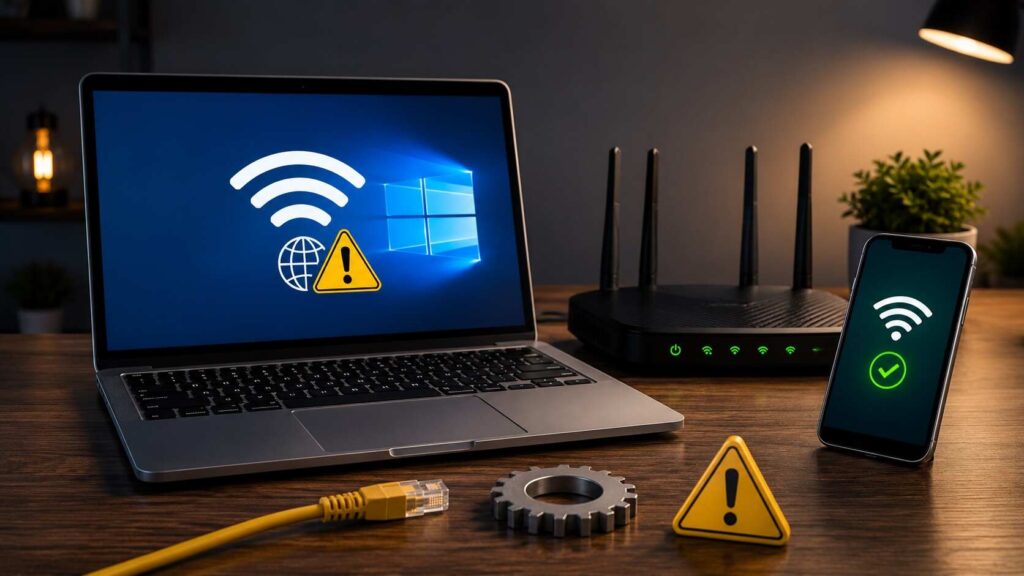
The no internet secured error means your Windows PC is connected to WiFi, but it cannot reach the web. Restart the router, reconnect WiFi, renew IP, flush DNS, then reset the adapter if needed. Work in this order to avoid risky changes and confirm whether the fault is your laptop, router, or internet provider today, without guessing or reinstalling Windows.
What the Windows Warning Means
Windows shows no internet secured when the wireless link is encrypted but traffic is not passing correctly. The WiFi password worked. The route beyond the router did not.
That distinction matters because the fix depends on location. If every device fails, suspect the modem, router, or ISP. If only one laptop fails, focus on Windows settings.
Check the Fault First
Do this before changing anything: connect your phone to the same WiFi and open a website. If your phone loads pages just fine, then your Windows PC is definitely the one acting up. If the phone fails too, restart the router and check your internet service.
Also test whether websites load despite the warning. When pages open normally, Windows may be misreading the connection status. In that case, check DNS, VPN, proxy, and security software first.
This small test prevents wasted work. Many no internet secured cases are router-side problems, not Windows damage.
Fix 1: Restart the Router and PC
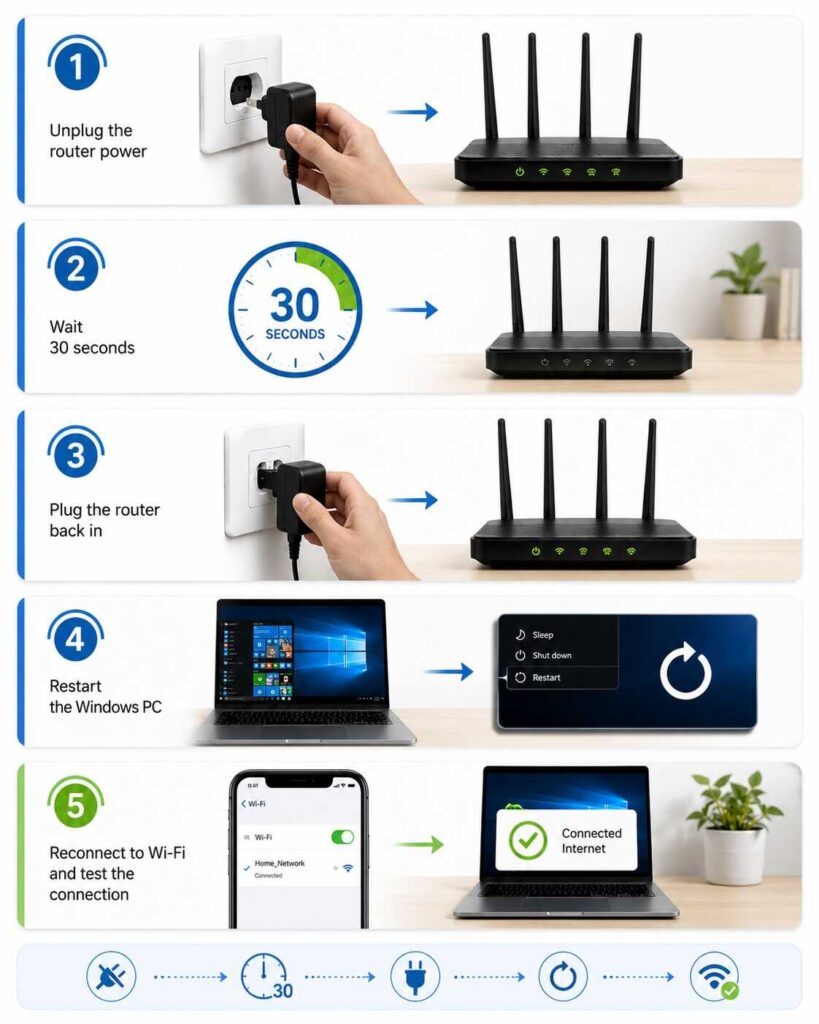
Unplug your router for a full 30 seconds to let it completely power down, then plug it back in. Restart your computer after the router lights settle. This clears stuck DHCP leases, weak sessions, and adapter errors.
Do not skip the PC restart. Windows often keeps a bad state until the adapter reloads.
Fix 2: Forget WiFi and Reconnect
A corrupted WiFi profile can connect successfully but fail during routing. Remove the saved profile and create a fresh connection.
On Windows 11, open Settings > Network & internet > WiFi > Manage known networks. Find your WiFi network in the list, hit Forget, and then log back in fresh using your password.
On Windows 10, open Settings > Network & Internet > WiFi > Manage known networks. Choose the network, click Forget, and reconnect.
This is the cleanest fix when no internet secured appears after changing a router, password, extender, or saved network name.
Fix 3: Renew IP and Flush DNS
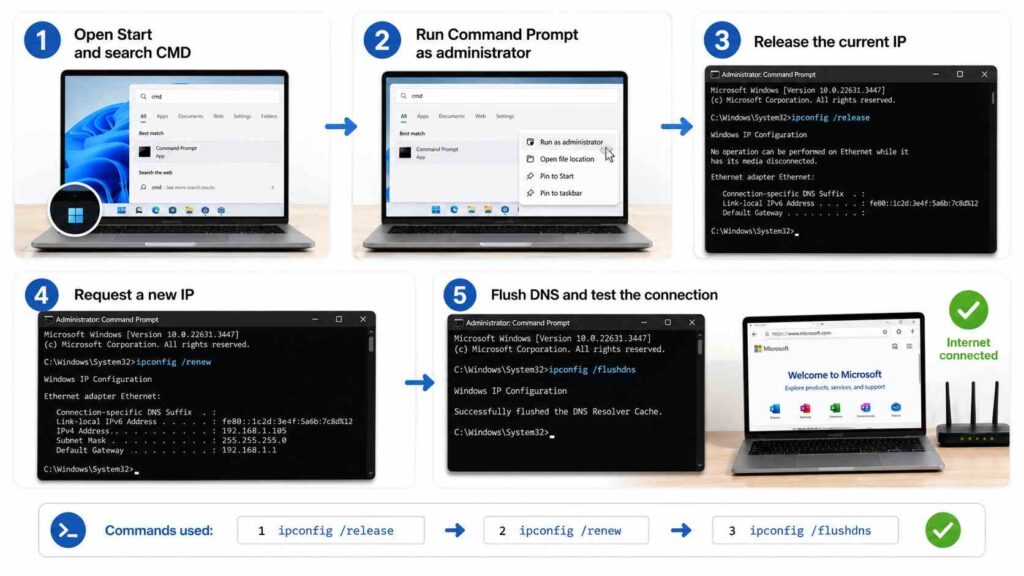
If Windows has a bad IP address or stale DNS cache, the WiFi icon can look connected while browsers fail. Run these commands from Command Prompt as administrator:
ipconfig /release
ipconfig /renew
ipconfig /flushdns
netsh winsock reset
Restart after the final command.
Those first two steps force your router to toss out your old IP and give your computer a completely fresh one. DNS flush removes outdated name lookups. Winsock reset rebuilds part of the Windows networking stack.
If your IP begins with 169.254, Windows is not receiving a valid address from the router. Restart the router and check DHCP settings.
Fix 4: Update the WiFi Adapter Driver
A broken or outdated driver can trigger no internet secured after Windows updates, sleep mode, or repeated disconnects.
Right-click Start, open Device Manager, expand Network adapters, then right-click your wireless adapter. Choose Update driver first.
If that fails, choose Uninstall device, restart the PC, and let Windows reinstall it. For business laptops, use the manufacturer’s driver page instead of random driver tools.
Avoid “driver booster” apps. They often install incorrect packages and create more network instability.
Fix 5: Use Network Reset
Use Network Reset only after the safer fixes fail. This completely uninstalls and puts back your network hardware, resetting all your internet settings back to square one.
On Windows 11, go to Settings > Network & internet > Advanced network settings > Network reset. On Windows 10, go to Settings > Network & Internet > Status > Network reset.
Afterward, reconnect to WiFi. You may need to reconfigure VPN software, virtual adapters, custom DNS, or corporate access tools.
Also Read: Why Does My WiFi Keep Disconnecting? 10 Fixes
Check VPN, Proxy, and Security Software
An overprotective firewall, a manual proxy, or a VPN kill switch can easily choke off your web traffic, even if your device says the Wi-Fi is still connected. Temporarily disable the VPN and test one website.
Open Settings > Network & internet > Proxy and turn off manual proxy unless your workplace requires it. Then check security software logs for blocked browsers or DNS traffic.
If no internet secured disappears after disabling one tool, update that tool or correct its network rules.
When the Router Is the Problem
If phones, tablets, and laptops all fail on the same WiFi, stop changing Windows settings. Restart the modem and router, check service lights, and test Ethernet if available.
If the internet light on your router goes completely dead, or if the outage is hitting every single device in the house, it’s time to pick up the phone and call your provider. Your PC cannot fix an ISP outage.
Final Verdict
The fastest reliable path is simple: isolate the fault, refresh the connection, renew IP, repair DNS, then reset the adapter only if needed. The no internet secured message is not a verdict; it is a routing failure. Tackle it step-by-step, and you’ll pinpoint exactly whether the culprit is Windows, your router, or your ISP—all without messing up anything that’s already working perfectly.
