

Want privacy without breaking your iPhone settings? Many people search for how to freeze location on Find My iPhone when they want to pause sharing, stop one person from seeing them, or control app tracking. Apple does not offer a “freeze location” button. Instead, it gives you safer controls inside Find My and Location Services. This guide explains how to pause location on Find My iPhone, how to hide location on iPhone, and what to avoid.
Can You Really Freeze Location on Find My iPhone?
Not exactly. “Freeze” usually means making Find My show an old location while you move elsewhere. Officially, Find My lets you share, stop sharing, or choose which device shares your location; it does not provide a fake static-location mode. Apple says you can stop sharing with one person or hide your location from everyone through Find My.
So, when users ask how to freeze location on Find My iPhone, the safest answer is to use Apple’s built-in privacy controls, not GPS spoofing apps. Those tools can ask for unsafe permissions, fail after iOS updates, or expose data.
How to Pause Location on Find My iPhone for Everyone
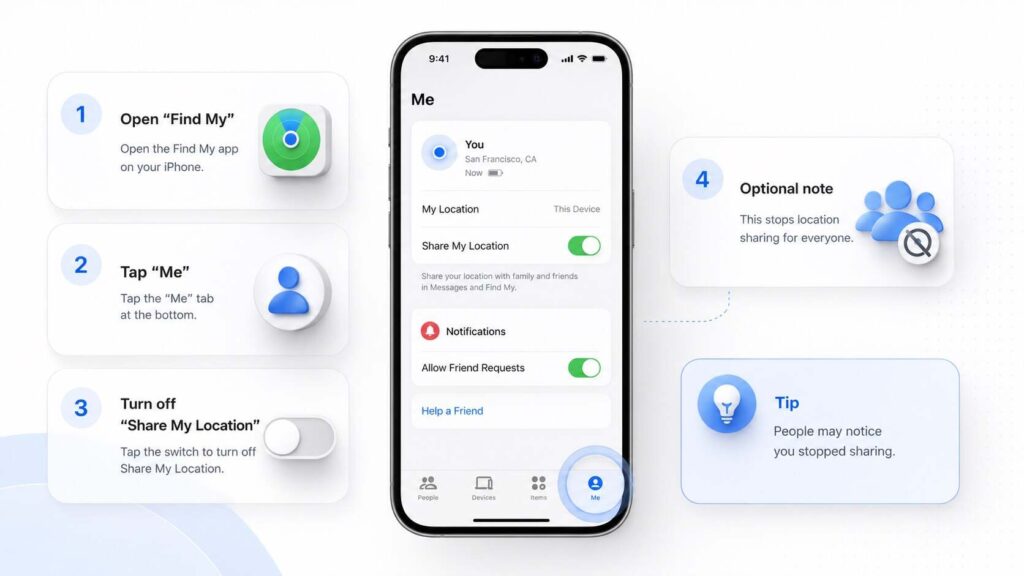
The fastest official method for how to pause location on Find My iPhone is simple: open Find My, tap Me, then turn off Share My Location. This is also the easiest answer to how to pause location on Find My if you want a full break from sharing.
Apple’s personal safety guidance says people may notice when you stop sharing, and earlier operating systems may send a Messages notification. Use this for a private appointment, personal trip, quiet weekend, or safety-related situation.
How to Hide Location on iPhone From One Person
To hide your location from one contact, open Find My, tap People, select the person, and choose Stop Sharing My Location. Apple lists this as the standard way to stop sharing with a specific friend.
This helps when you still want a spouse, parent, or trusted friend to see your location, but no longer want an old contact to have access. If someone asks how to pause your location on Find My iPhone for only one person, this is the cleanest method.
Switching the Device That Shares Your Location
If you own more than one Apple device, Find My may let you choose which device shares your location. Apple says the sharing device appears under Find My, and you can tap Use This iPhone as My Location when needed.
Use this feature carefully. If someone relies on your location for safety, do not use device switching to mislead them. Say, “I’m turning off location sharing for a while.”
Location Services vs. Find My Sharing
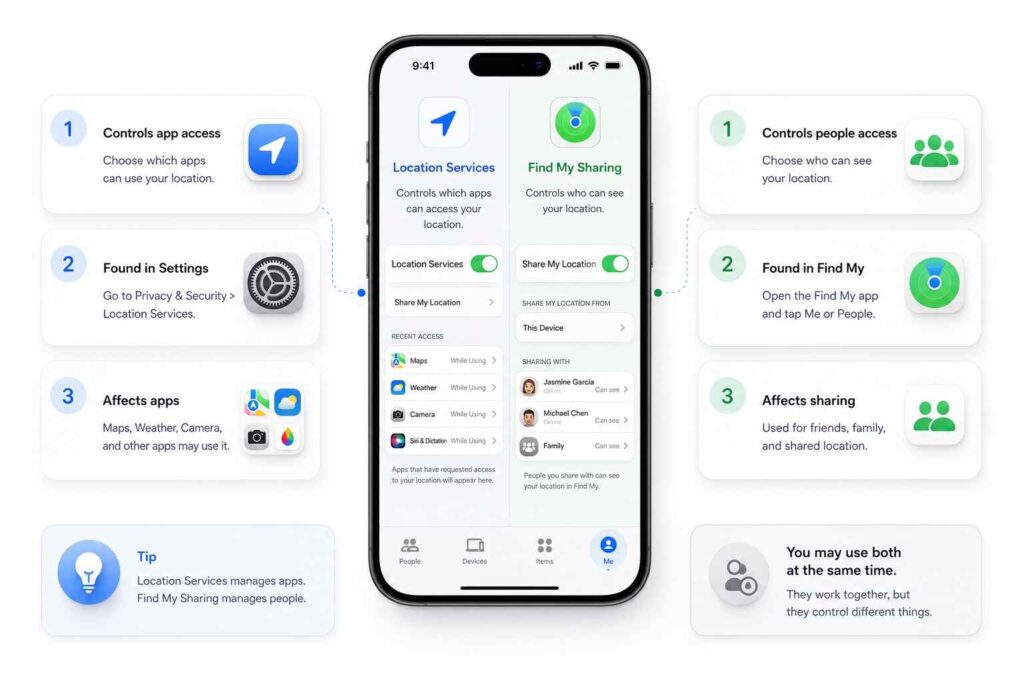
Find My controls who can see your location. Location Services controls whether apps can use your device location. Go to Settings > Privacy & Security > Location Services to review it. Apple explains that turning Location Services off can limit Apple and third-party app features.
For better privacy, check Maps, Weather, rideshare apps, social media, and photo apps. Many apps offer choices such as Never, Ask Next Time, While Using the App, and Always. This matters for anyone learning how to hide location on iPhone beyond Find My.
Also Read: ADB Explained: What Android Debug Bridge Is and Why Android Users Need It
What Not to Do
Do not rely on Airplane Mode as your main privacy method. It can interrupt calls, texts, emergency access, and app features. Find My may show “No location found,” “Offline,” or “Not sharing location • Online” depending on whether your device can send location data.
Also, deleting Find My is not a complete privacy plan. Apple says Location Services settings can still help ensure your location is not being shared if Find My has been deleted.
Conclusion
If you want to know how to pause location on Find My iPhone, skip risky hacks. Use Find My to stop sharing with one person or everyone, then review Location Services for app-level privacy. For deeper protection, read a related guide on iPhone privacy settings and check your location permissions today.
FAQs
How do I pause my location without turning off my iPhone?
Open Find My, tap Me, and turn off Share My Location. That is the most direct method for how to pause your location on Find My iPhone while keeping your phone usable.
Can I pause location on Find My for one person only?
Yes, exactly. Just open the Find My app, go to People, select the person’s name, and hit Stop Sharing My Location. This answers how to pause location on Find My for one specific person.
How do I freeze my location on Find My iPhone at one place?
There is no official freeze button. The safe options are to stop sharing, turn off Share My Location, or choose which Apple device shares your location.
