

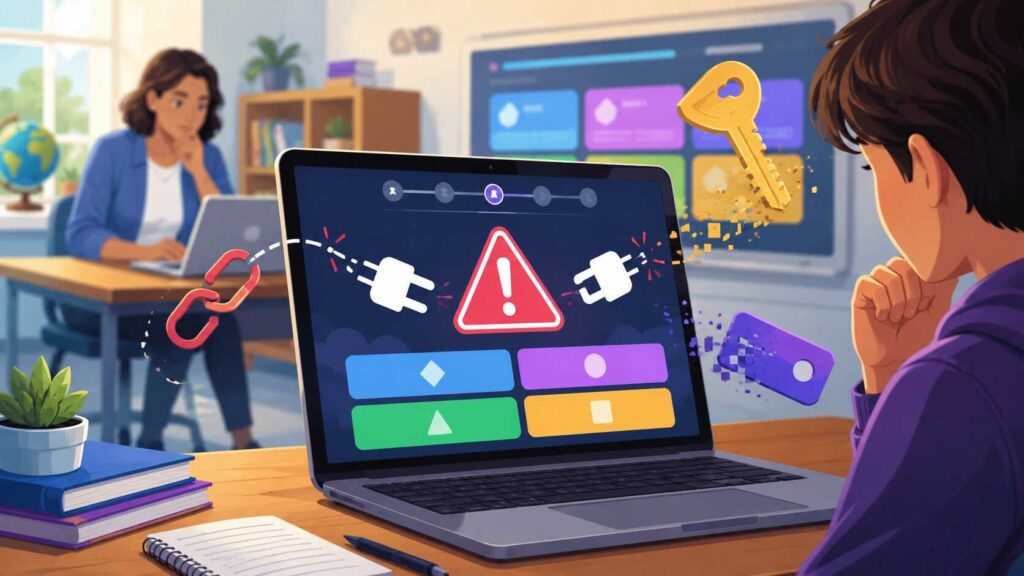
If Gimkit shows an “invalid API token” message in your browser console, start here: clear your browser cache and cookies, reset the Gimkit host session, and disable outdated Chrome extensions that may block scripts or reuse old login data. Then open a fresh tab, complete gimkit login again, and rejoin through gimkit.com/join with the newest game code. In most classrooms, this error does not mean your account is broken. It usually points to an expired session, stale join link, blocked request, or browser conflict.
What the Gimkit Invalid API Token Error Indicates?
A Gimkit console error that says “invalid API token” means the browser tried to use session information Gimkit no longer accepts. Although the page itself might load, the live match, user dashboard, and entrance screen will fail to establish a complete connection.
Teachers often notice it while starting a gimkit host session. Students may see it when using gimkit join on a shared Chromebook. The wording sounds developer-focused, but regular users do not need to copy, edit, or replace an API token. Gimkit handles those details in the background.
Quick Invalid API Token Fix Checklist
Use this order before assuming Gimkit is down or your account is damaged.
- Close every Gimkit tab.
- Clear Gimkit cookies, cache, and site data.
- Sign out, then complete gimkit login again.
- Restart the gimkit host session.
- Use the newest game code or join link.
- Turn off old ad blockers, VPNs, script blockers, privacy tools, and classroom extensions.
- Update your browser or try incognito mode.
- Ask school IT to check filters if many students are affected.
In United States schools using managed Chromebooks, extensions and filters are common causes. One outdated add-on can interrupt the request Gimkit uses to confirm a player name, class, or live game.
Also Read: Gimkit Host Guide: Find Live Codes, Join Games, and Start Playing Fast
Clear Cache and Site Data Correctly
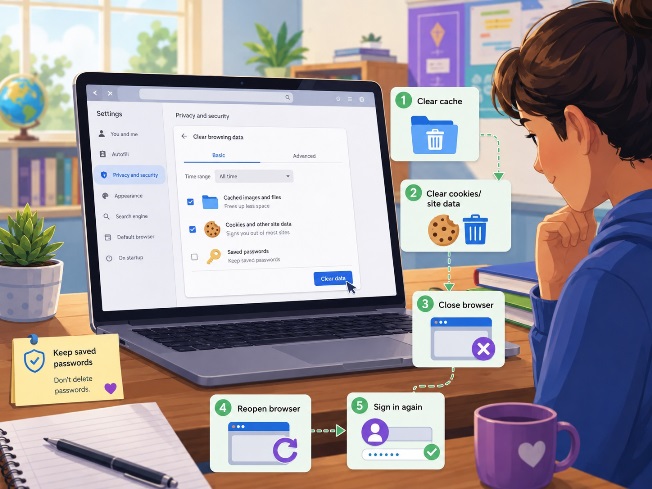
A normal refresh is not always enough. The old token may be stored in cookies or site data, so Gimkit keeps seeing the same bad session.
In Chrome, open Settings, go to Privacy and security, choose site data, search for Gimkit, and delete the stored data. Close the browser, reopen it, and sign in again. On a school Chromebook, students may need an admin’s help. You can also test with another profile, guest mode, or device.
Avoid clearing saved passwords unless you mean to. Cache, cookies, and site data are usually enough.
Reset the Gimkit Host Session
If several students get the same invalid API token error during gimkit join, the host session may be stale. A teacher may have prepared the game earlier, copied an old link, or left the host page open during a break.
End that setup and launch a fresh live game. Pick the kit, choose the mode, review the options, and share a new game code or join link. Ask students to close old tabs before joining again. This prevents them from mixing yesterday’s link, an earlier class period’s code, and the current session.
Check Extensions, VPNs, and School Filters
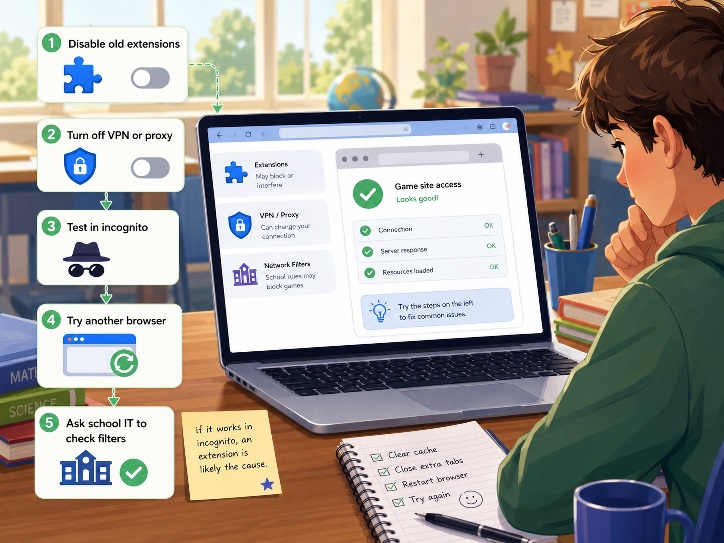
Extensions can quietly cause console errors. Tools that block ads, rewrite scripts, force a proxy, inspect classroom activity, or block tracking may stop Gimkit from confirming the session.
Test in an incognito window with extensions disabled. If Gimkit works there, turn extensions back on one at a time until the error returns. Start with privacy tools, VPNs, script blockers, coupon extensions, and older school add-ons.
For district networks, ask IT to confirm that Gimkit’s website and game server domains are allowed. This is not about bypassing security. It helps the game load pages, media, and real-time connections.
When Gimkit Login Is the Real Issue
Sometimes the error appears because the wrong account is active. A teacher may be logged into one Google account in Chrome and another in Gimkit. A student may also be using a shared device with another person’s session.
Sign out of Gimkit and Google, then sign back in with the correct school account. Teachers should use an educator account when creating kits or hosting games. Students can often join live games without accounts, but login may matter for classes, assignments, or school-managed settings.
If hosting fails, try another kit or a new blank kit. If joining fails, use the manual game code instead of an old saved link.
Final Takeaway
A Gimkit console error with an invalid API token sounds serious, but it is usually a fixable session, browser, extension, or host-link problem. Clear Gimkit site data, reset the gimkit host game, avoid outdated Chrome extensions, and confirm students use the newest gimkit join code. If the issue continues across multiple devices on the same school network, ask IT to review filters and allowed domains.
FAQ About Gimkit Console Errors
Why does Gimkit say invalid API token?
It usually means the browser is using an expired, blocked, or mismatched session. Clearing site data, logging in again, and using a fresh host code often fixes it.
Do I need to change an API key in Gimkit?
No. Normal teachers and students do not manage Gimkit API keys. Avoid tutorials that ask you to paste scripts or edit tokens in the browser console.
Why does Gimkit join work for some students but not others?
That usually means the issue is device-specific. Check that student’s cache, extensions, account session, browser version, and join link.
