


Seeing err_ssl_protocol_error in Chrome can stop you at the worst moment: a bank login, checkout page, work portal, or your own website. The message sounds serious, but the cause is usually easy to narrow down.
This guide explains what the error means, why it happens, and how to fix it as a visitor or site owner. You will also learn when the problem is on your device and when the website’s SSL/TLS setup needs repair.
What Does err_ssl_protocol_error Mean?
err_ssl_protocol_error means Chrome could not complete a secure SSL/TLS connection with the website. You may also see it as net::err_ssl_protocol_error, err ssl protocol error, or ssl protocol error.
In simple terms, your browser and the server failed to agree on a safe encrypted connection. The reason may be old browser data, a wrong system clock, a VPN or antivirus conflict, or a website certificate problem.
The error does not automatically mean the site is hacked. It means Chrome could not complete the secure connection, so it stopped loading the page.
Common Causes in Chrome
This error usually appears during the HTTPS handshake, when Chrome and the website try to set up encryption.
Wrong date or time
SSL/TLS certificates work only within specific date ranges. If your device clock is wrong, Chrome may reject a valid certificate.
Corrupted cache or site data
Old browser files can conflict with a site after it renews SSL, changes hosting, adds a CDN, or moves from HTTP to HTTPS.
Extensions, VPNs, proxies, or antivirus tools
Some tools inspect encrypted traffic. If that inspection fails, Chrome may show an SSL protocol error.
Website-side SSL/TLS issues
If only one site fails, the problem may be an expired certificate, missing intermediate certificate, unsupported TLS version, redirect error, or CDN misconfiguration.
How to Fix net::err_ssl_protocol_error as a Visitor
Start with the safest steps first.
- Refresh and check the URL. Reload once. Confirm the domain is spelled correctly and starts with
https://. - Correct your device clock. Access your date and time configuration by clicking Start, choosing Settings, and then proceeding to Time & language followed by Date & time. On macOS, use System Settings > General > Date & Time. Enable automatic time and restart Chrome.
- Clear Chrome cache and cookies. Open Chrome’s three-dot menu, choose Delete browsing data, select All time, and clear cached files and cookies. This may sign you out, but it often removes corrupted site data.
- Test Incognito mode. If the page works there, disable extensions one by one, especially ad blockers, privacy tools, and security add-ons.
- Pause VPN, proxy, or antivirus HTTPS scanning. Test briefly, then turn protection back on. If the site works after disabling a tool, update it or ask IT support to review SSL inspection.
- Update Chrome and restart your router. If several secure websites fail, this can clear browser and network glitches.
Also Read: Fix Windows Error 0xc000007b Fast: 100% Proven Solutions!
Fixing SSL Protocol Error as a Website Owner
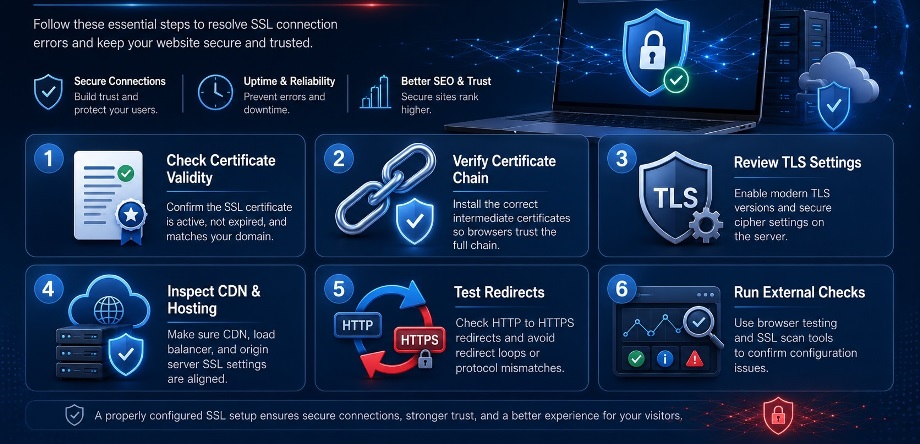
If users report err_ssl_protocol_error chrome on your site, treat it as a trust issue. For U.S. ecommerce stores, clinics, law firms, service businesses, and SaaS brands, a browser warning can cost leads and sales.
Check these areas first:
Certificate validity
Make sure your SSL certificate is active, not expired, and issued for the exact domain visitors use. A certificate for example.com may not cover www.example.com.
Certificate chain
Your server should send the main certificate and correct intermediate certificates. A broken chain may work for some users but fail for others.
TLS and CDN settings
Modern browsers expect secure TLS configuration. Outdated protocols, weak cipher settings, or a mismatch between the CDN and origin server can trigger errors. If you use Cloudflare, a load balancer, or managed hosting, SSL must be configured at every layer.
Also Read: How to Fix USB Ports Not Working: 7 Proven Methods to Try
How to Know Where the Problem Is
Test more than one website. If many HTTPS websites fail, the issue is probably your device, browser, network, antivirus, or router. If only one website fails, the site owner likely needs to fix SSL/TLS settings.
You can also test on mobile data instead of Wi-Fi. If the page opens on mobile data but not on office Wi-Fi, the network firewall, DNS filter, or proxy may be involved.
Conclusion
err_ssl_protocol_error looks complicated, but the fix is usually systematic. Check your clock, clear Chrome data, test extensions, review VPN or antivirus settings, and then investigate server SSL/TLS configuration if only one website is affected.
Next step: read a related SSL troubleshooting guide or ask your hosting provider to run a full certificate and TLS check.
FAQs About err_ssl_protocol_error
Is err_ssl_protocol_error dangerous?
Not always. It means Chrome could not create a secure connection. The safest move is to troubleshoot the cause instead of bypassing the warning.
How do I fix err_ssl_protocol_error in Chrome quickly?
Check the date and time, clear Chrome cache and cookies, try Incognito mode, disable VPN or HTTPS scanning temporarily, update Chrome, and test another network.
Why does net::err_ssl_protocol_error happen on one website only?
When only one site fails, the website may have an expired certificate, missing intermediate certificate, redirect problem, CDN issue, or server TLS misconfiguration.
