

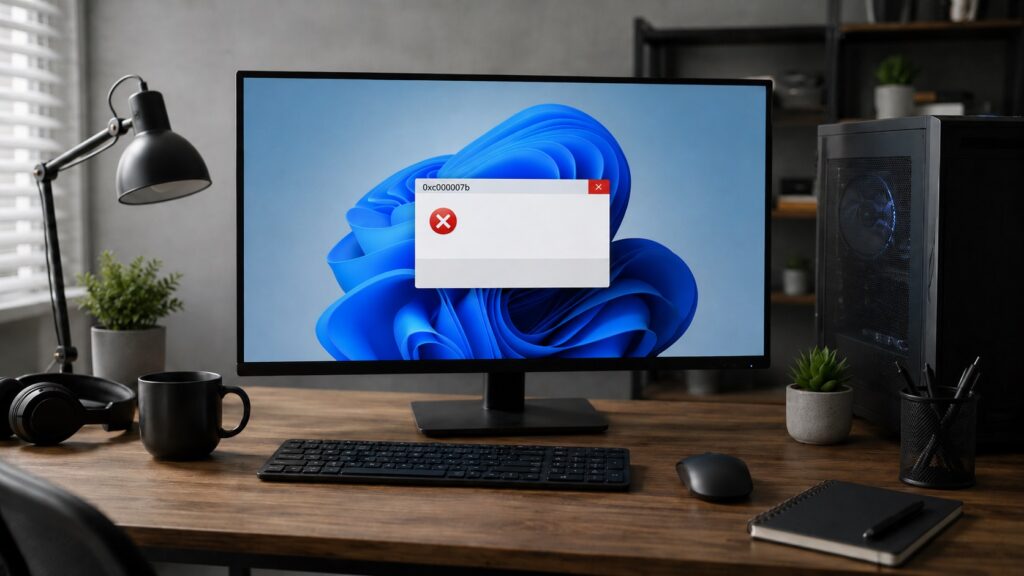
Windows error 0xc000007b means the app is loading a file Windows cannot use, often because runtime files, DirectX, .NET, or 32-bit and 64-bit components are mixed or damaged. Repair app dependencies first, then repair Windows files only if the problem continues after restarting your PC properly for most users today.
- What This Error Usually Means
- Start With These Basic Checks
- Best Fix Order
- Fix 1: Repair or Reinstall the App
- Fix 2: Install Visual C++ Redistributables
- Fix 3: Repair DirectX Runtime Files
- Fix 4: Repair .NET Framework
- Fix 5: Check 32-bit and 64-bit Mismatch
- Fix 6: Run Windows Repair Commands
- Fix 7: Update Windows and Graphics Drivers
- What You Should Not Do
- Final Repair Checklist
- FAQs
What This Error Usually Means
The message looks simple, but the cause is rarely one missing file. Windows starts the app, checks its dependencies, and one of those files fails to load correctly.
You may see it with games, launchers, editing tools, emulators, or older software. If one app fails, the app files are probably broken. If several apps fail, Windows dependencies need attention.
Start With These Basic Checks
Restart the computer first. It clears locked files and unfinished updates. Then right-click the program and select Run as administrator.
Also check whether the software supports your Windows version. Older installers may run, but still fail when they call outdated runtime files.
Do not download random DLL files from forums. That shortcut often creates a second problem instead of fixing 0xc000007b.
Best Fix Order
| Step | What to Fix | Why It Matters |
|---|---|---|
| 1 | App repair or reinstall | Fixes broken local files |
| 2 | Visual C++ x86 and x64 | Restores runtime libraries |
| 3 | DirectX runtime | Helps games and graphics apps |
| 4 | .NET Framework | Helps launchers and older tools |
| 5 | SFC and DISM | Repairs Windows components |
Fix 1: Repair or Reinstall the App
If one program is showing 0xc000007b, repair that program before changing Windows. Use the repair option if available. If not, uninstall it, restart, and install a clean copy from the official website or launcher.
For Steam, Epic Games, EA App, and Ubisoft Connect, use file verification first. It replaces damaged files without forcing a full reinstall.
Fix 2: Install Visual C++ Redistributables
Many cases come from missing or damaged Microsoft Visual C++ Redistributables. Some users install only the 64-bit package because their Windows is 64-bit. That is not enough.
A 64-bit system can still run 32-bit apps, so install both x86 and x64 versions. Start with Visual C++ 2015-2022, then add 2010 and 2013 if the software is old.
This step matters if the app mentions MSVCP140.dll, VCRUNTIME140.dll, or MSVCR100.dll. Restart Windows before testing again.
Fix 3: Repair DirectX Runtime Files
Games commonly trigger 0xc000007b because they depend on DirectX files that Windows updates do not always replace. Older games may need legacy DirectX components even on Windows 10 or Windows 11.
Use the official DirectX End-User Runtime installer. Let it scan and add missing components. Do not paste DirectX DLL files into System32 or the game folder.
Fix 4: Repair .NET Framework
Some apps fail before the main window opens because .NET Framework is disabled, incomplete, or damaged. This is common with launchers, utilities, and older Windows programs.
Open Windows Features, enable the listed .NET Framework options, apply the changes, and restart. If the error remains, use Microsoft’s .NET repair tool.
Fix 5: Check 32-bit and 64-bit Mismatch
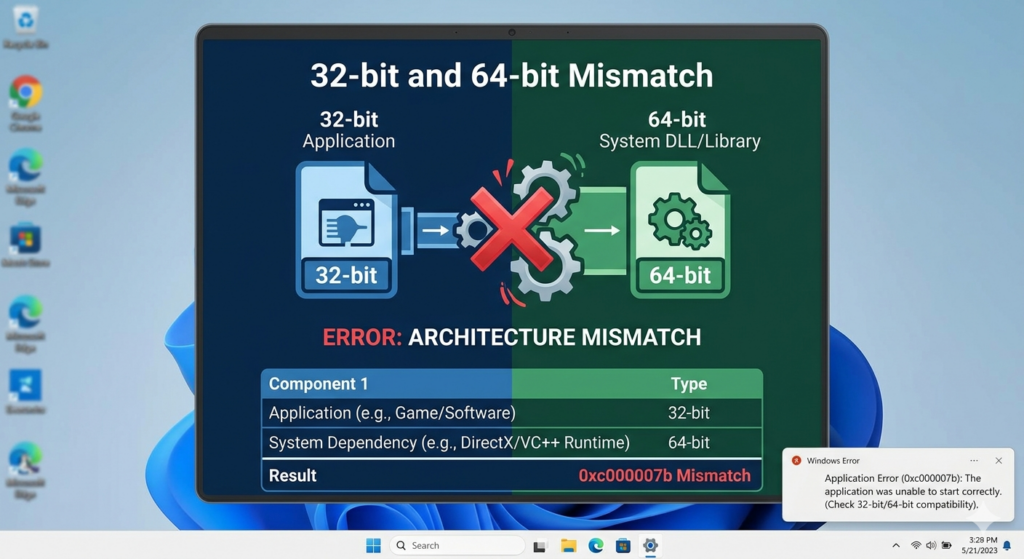
The technical root of 0xc000007b is often a bad architecture match. A 64-bit app may call a 32-bit DLL, or a 32-bit app may load a 64-bit file.
This usually happens after unofficial patches, cracked installers, manual DLL replacement, or copied folders from another PC. Remove those changes and reinstall the correct app version.
Fix 6: Run Windows Repair Commands
If many apps are failing, repair Windows system files. Open Command Prompt as administrator and run:
DISM.exe /Online /Cleanup-image /Restorehealth
sfc /scannow
Run DISM first, then SFC. DISM repairs the Windows image; SFC checks protected system files. Restart after both commands finish.
Fix 7: Update Windows and Graphics Drivers
Install pending Windows updates, then update the graphics driver from NVIDIA, AMD, Intel, or your laptop manufacturer. Avoid third-party driver tools.
This matters for games, CAD software, video editors, and apps using GPU acceleration. Driver faults can make 0xc000007b look like an app issue.
Also Read: How to Fix USB Ports Not Working: 7 Proven Methods to Try
What You Should Not Do
Do not delete files from System32 or SysWOW64. Do not use registry cleaners. Do not install “one-click DLL fixer” software.
A clean reinstall of the right dependency is safer.
Final Repair Checklist
Fix 0xc000007b in this order: repair the app, install Visual C++ packages, repair DirectX, check .NET, update drivers, then run DISM and SFC. This order solves common causes without risky system changes first.
If the same app still fails, collect the app version, Windows version, and screenshot. Send those details to the software vendor. The issue may be version-specific, not a general Windows fault.
FAQs
What is the quickest way to fix 0xc000007b?
Install Visual C++ x86 and x64, restart, and test the app.
Is 0xc000007b caused by malware?
Usually no. It is normally a runtime, DLL, app, or Windows file problem.
Should I download DLL files manually?
No. Use official Microsoft installers and app repair tools instead.
Why do games show this error often?
Games rely on Visual C++, DirectX, launchers, and GPU drivers.
Do I need to reinstall Windows?
Only after app repair, runtime repair, driver updates, DISM, and SFC fail.
