

Gimkit is fun when everyone gets into the game quickly. It becomes frustrating when students cannot find the code, the join page will not load, or the host is unsure what to share. This guide explains the process in plain language for teachers, tutors, parents, and students.
You will learn what a Gimkit host does, how live codes are created, where to find valid codes, how to use gimkit join, and when gimkit login is needed.
What Is Gimkit and Why Do Live Codes Matter?
Gimkit is a classroom game platform where students answer questions, earn in-game money, and compete or collaborate depending on the selected mode. Teachers use it for review sessions, vocabulary practice, test prep, and quick knowledge checks.
A live code is the short game code shown by the host when a live session is ready. Students use that code to enter the same game. A working Gimkit code usually comes from the person hosting the session, not from random code lists online. Random codes may be expired, closed, or unrelated to your class.
What Does a Gimkit Host Do?
A Gimkit host is usually the teacher or organizer who starts the game. The host selects the question kit, chooses a game mode, adjusts settings, and shares access with players.
Basic hosting flow
To host a Gimkit game, the educator signs in, chooses a kit, clicks the live play option, selects a mode, reviews the settings, and opens the lobby. The lobby is where the game code, QR code, or join link appears. Once players have joined, the host starts the game.
Good hosts check settings before sharing the code. Common choices include late joining, name approval, and how the game ends. For younger students, the nickname generator can reduce inappropriate names and save time.
How to Find Live Gimkit Codes Safely
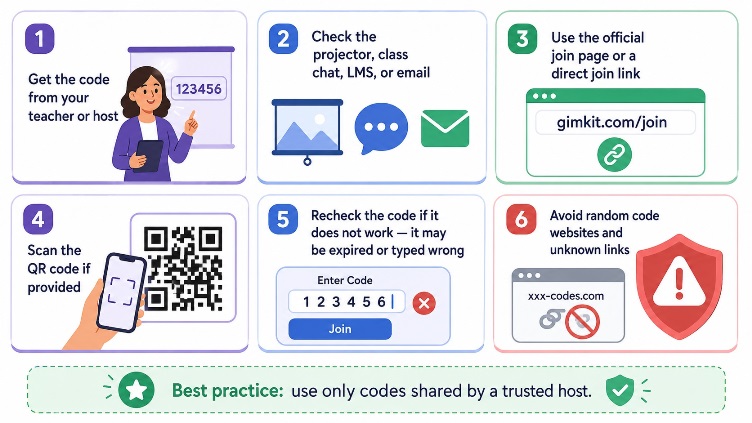
The safest way to find a live Gimkit code is to look at the host’s screen, class announcement, learning management system, or shared message. A live code is not something you should normally search for across random websites.
Check the classroom projector, Google Classroom, Canvas, Schoology, Microsoft Teams, a direct join link, a QR code, or a chat message from the tutor or club organizer.
Avoid sites claiming to publish “always working Gimkit codes.” Most live games are temporary, and joining unknown games can create privacy and classroom management issues, especially in US school settings.
How to Use Gimkit Join as a Student
Using gimkit join is simple when you have the correct code. Go to the official join page, enter the game code from your teacher or host, then type your name or approve the nickname if the host uses the nickname generator.
If your teacher shares a direct link, you may not need to type the code. If they show a QR code, scan it with your device camera and follow the prompt.
Why your Gimkit code may not work
A code may fail because the host ended the session, the code was typed incorrectly, or your school device is blocking part of the site. First, recheck the number. Then refresh the page. If it still fails, ask the host to enlarge the code or send the direct link.
Gimkit Login: Do Students and Hosts Need Accounts?
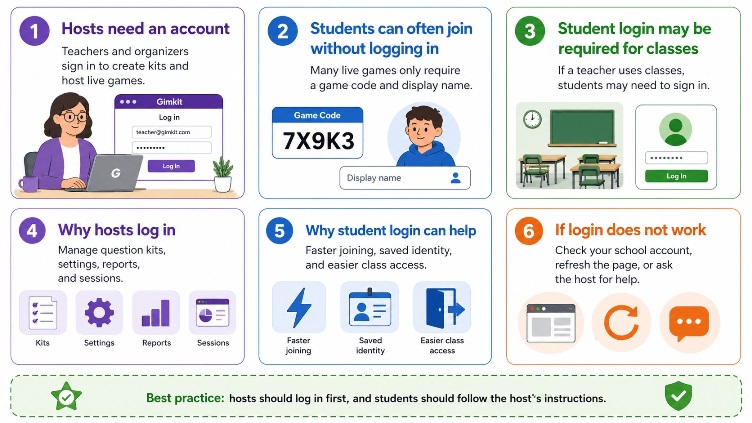
For educators, gimkit login is required to create kits and host games. The account lets teachers manage content, classes, reports, and game sessions.
For students, login depends on how the host sets up the session. Many students can join a live game with only a code and name. If the teacher uses classes, logged-in students may join faster or automatically.
Also Read: Blooket Bot Explained: How It Works, Risks, and Safer Ways to Use Blooket
Tips for a Smooth Gimkit Host Session
A good Gimkit host prepares before the room gets noisy. Test the kit, open the lobby early, and keep the code visible. If you are teaching online, paste the join link into the meeting chat instead of reading the code out loud.
For larger groups, use a QR code and direct link together. Check player names before starting. During the game, remind late joiners to use the same code shown on the host screen.
FAQs About Gimkit Host and Join Codes
How do I host a Gimkit game?
Log in as an educator, choose a kit, select live play, pick a game mode, adjust settings, and share the code, QR code, or join link from the lobby.
Where do I enter a Gimkit code?
Students enter the code on the Gimkit join page. The code should come from the teacher, tutor, or organizer hosting the live game.
Can I join Gimkit without logging in?
Yes. Many live games allow students to join with a code and display name. Login may be needed if your teacher uses classes.
Are random Gimkit live codes safe?
Not always. Random codes may be expired, unrelated to your class, or inappropriate for school use. Use codes shared by a trusted host.
Final Thoughts
Gimkit works best when the host and players know the flow before the game begins. Hosts should prepare the kit, choose the right settings, and share a clear code, QR code, or link. Students should use only trusted live codes and follow the host’s instructions.
Next, read a related guide on creating better Gimkit question kits or comparing Gimkit with other classroom review platforms.
